
Design Tools for Designers: Figma, Canva, Adobe and More
Disclosure: DCCommunity is reader-supported. Some links on this site may be affiliate links, which means we may earn a commission at no extra cost to you. This never changes how we describe a product. Learn more.
Design work today covers much more than graphics. Many designers also build interfaces, prototype apps, publish websites and use AI to explore ideas faster. The right toolkit depends on what you deliver to clients: brand assets, UI screens, social content or live websites.
This guide looks at seven design tools used by freelancers, in-house designers and small studios, plus how automation fits in. For each tool you will find its main use, who it suits and what the free option includes. Prices were checked on official websites in October 2026 and can change.
Quick comparison
| Tool | Main use | Free option | Paid plans from |
|---|---|---|---|
| Figma | UI/UX design, prototyping, design systems | Free Starter plan (3 projects) | $12/editor/month billed yearly |
| Canva | Quick graphics, social content, presentations | Free plan | $144/year (Canva Pro, one person) |
| Adobe Creative Cloud | Professional photo, vector, video and layout apps | Free trial | See official site |
| Adobe Firefly | Generative AI images, video and effects | Free daily generations | $9.99/month (Standard) |
| Framer | Designing and publishing websites without code | Free plan | $10/month (Basic) |
| Relume | AI sitemaps and wireframes for websites | Build for free | Hosting from $14/month |
| Uizard | AI-assisted UI mockups and prototypes | Free plan (2 projects) | $12/month billed yearly |
Figma
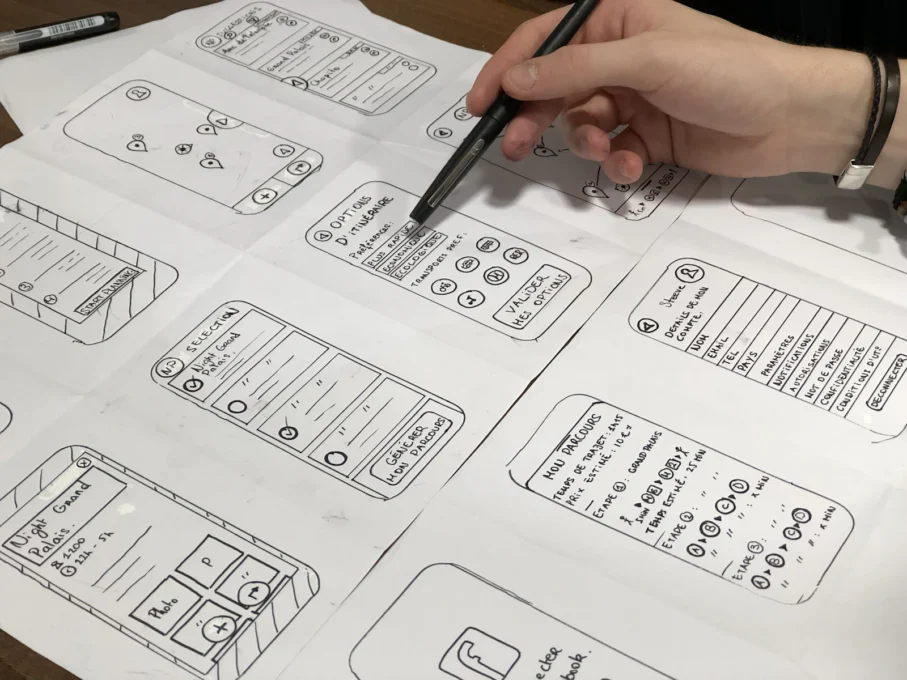
Figma is a browser-based design tool for interfaces, prototypes and shared design systems. Teams can work in the same file at the same time, leave comments and hand off specs to developers. The free Starter plan includes 3 projects, 2 members and 30 days of version history. The Professional plan is priced per editor.
- Good fit if: you design apps, websites or products and collaborate with developers.
- Keep in mind: it is not built for print layout or advanced photo editing.
Canva
Canva makes it fast to create social posts, presentations, flyers and simple videos from templates. The free plan includes basic tools, templates and a limited number of AI uses each month. Canva Pro adds premium templates and assets, more AI access, brand tools and social scheduling. For teams, Canva now points new customers to Canva Business.
- Good fit if: you produce a lot of marketing content or work with clients who edit designs themselves.
- Keep in mind: for complex brand identities and detailed illustration, professional apps offer more control.
Adobe Creative Cloud
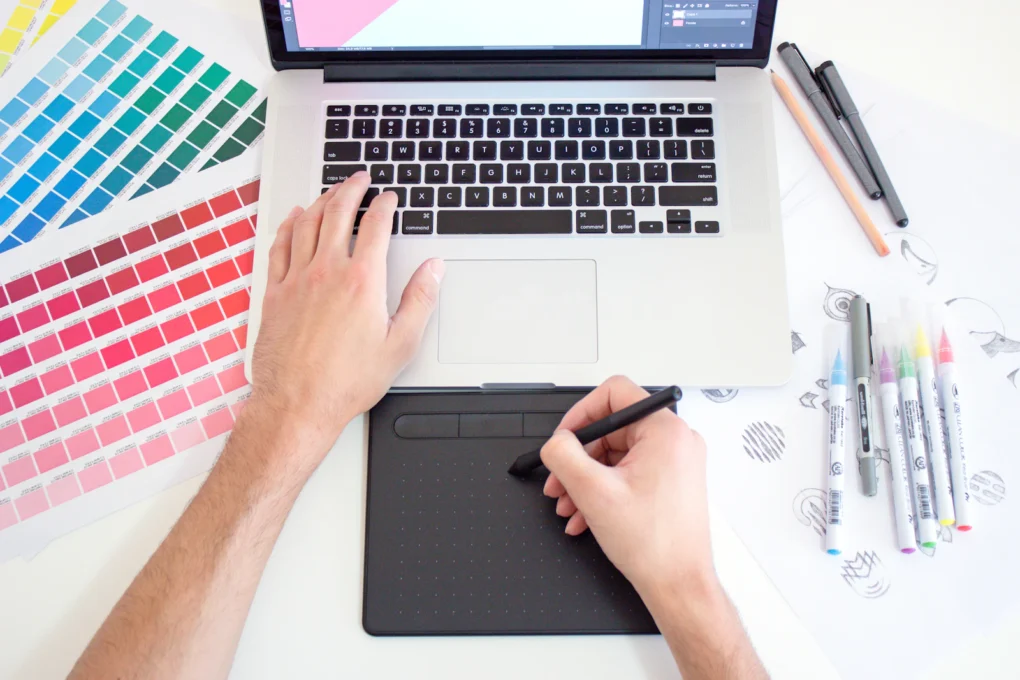
Creative Cloud includes Adobe’s professional apps such as Photoshop, Illustrator, InDesign, Premiere Pro and Lightroom. It remains a common standard in agencies and print work. Adobe sells single-app and all-apps plans, with different prices for individuals, students, teams and businesses, and offers free trials.
- Good fit if: you need professional-grade photo, vector, print or video work, or your clients expect Adobe files.
- Keep in mind: the full suite is a significant monthly cost. Pick single apps if you only need one or two.
Adobe Firefly
Firefly is Adobe’s family of generative AI tools for images, video, audio and vector graphics, also built into apps like Photoshop. The free plan offers daily generations to try it. Paid plans such as Firefly Standard add monthly generative credits. Adobe says Firefly’s own models are trained on licensed and public-domain content and that their outputs are designed to be safe for commercial use.
- Good fit if: you want AI for concept exploration, backgrounds or quick variations inside an Adobe workflow.
- Keep in mind: review each client’s policy on AI-generated assets and check usage terms for any third-party models offered in the app.
Framer

Framer is a no-code website builder that feels familiar to designers. You design pages visually, add a CMS, animations and SEO settings, and publish with hosting included. The free plan includes a Framer subdomain and AI credits to try its features. Basic is the entry paid plan, and a custom domain requires a paid plan.
- Good fit if: you want to deliver live, animated websites without handing off to a developer.
- Keep in mind: larger sites with many pages or languages need higher plans.
Relume
Relume uses AI to turn a short description into a sitemap and wireframes, giving you a structured starting point for a website project. According to Relume, you can build for free and add hosting when a site goes live, with hosting plans from $14 per month and no per-seat charge for collaboration.
- Good fit if: you plan websites for clients and want to speed up the structure and wireframe phase.
- Keep in mind: wireframes are a starting point. Visual design and copy still need your expertise.
Uizard
Uizard is an AI-assisted tool for creating UI mockups, wireframes and clickable prototypes, including generating screens from a text prompt or a screenshot. The free plan allows 2 projects and 3 AI generations per month. The Pro plan raises those limits significantly.
- Good fit if: you are a founder, product manager or junior designer who needs quick app concepts.
- Keep in mind: for production-ready design systems, most teams move the work into a tool like Figma.
Where automation fits
Designers spend a surprising amount of time on admin: moving files, sending proofs, updating project boards and logging invoices. Automation tools such as Zapier can connect apps so that, for example, a new form submission creates a project card and a shared folder automatically. Start with one repetitive task and automate that first.
How to build your design toolkit
- Start from your deliverables. UI and product: Figma. Social and marketing: Canva. Print, photo and video: Adobe Creative Cloud. Live websites: Framer.
- Add AI where it saves time. Firefly for image ideas, Relume for website structure, Uizard for quick app concepts.
- Test on a real project. Every tool here has a free plan or trial.
- Check licensing. Confirm commercial use rights for templates, stock assets, fonts and AI outputs before delivering client work.
How we researched this guide
We checked each company’s official website for its current focus, plan names, free option and entry price. We describe what each vendor says its product does and add practical notes on who it may suit. We have not tested these tools hands-on, and companies cannot pay to be included. See our review methodology.
Frequently asked questions
Is Figma free for freelancers?
Figma’s free Starter plan works for small personal projects (up to 3 projects). Most freelancers with several clients move to the Professional plan.
Canva or Adobe: which should a designer learn?
Both are useful. Canva is faster for templates and client-editable content. Adobe apps give more control for professional brand, print and photo work.
Can I use AI-generated images in client work?
It depends on the tool’s terms and the client’s policy. Adobe states that outputs from its own Firefly models are designed for commercial use. Always read the current terms for any AI tool you use.
Do I need to code to build websites with Framer?
No. Framer is a no-code builder, although it supports custom code components if you want them.
Related guides: AI writing tools compared and productivity tools for small teams.
Editorial note: Product names and trademarks belong to their respective owners. DCCommunity is not affiliated with or endorsed by the companies mentioned unless stated. Information was checked against official websites in October 2026 and is provided for general guidance only. Features and prices may change.