

WordPress on Hostinger: 7 Practical Lessons From Running This Site
Disclosure: DCCommunity is reader-supported. Some links on this site may be affiliate links, which means we may earn a commission at no extra cost to you. This never changes how we describe a product. Learn more.
This site runs WordPress on Hostinger, and has done since it launched in July 2026. That makes this guide different from our comparisons: it is based on our own account and on what we see in the Hostinger dashboard every week, plus the prices Hostinger publishes for new customers.
Below are seven practical lessons from setting up and running WordPress on Hostinger. We pay for this hosting plan ourselves. At the time of writing, DCCommunity is not a Hostinger affiliate. If that changes, this page will say so. Plan prices were checked on the official website in October 2026.
WordPress on Hostinger: our setup at a glance
| Item | What we use |
|---|---|
| Hosting | A shared Hostinger plan, shown as Business in our dashboard, hosting more than one website |
| Control panel | hPanel, Hostinger’s own dashboard |
| PHP version | 8.3 |
| Caching | LiteSpeed Cache plugin plus Hostinger’s CDN |
| Backups | Daily backups, enabled in hPanel |
| SSL | Active, with Force HTTPS switched on |
| A mailbox on our own domain, read in Hostinger’s webmail |
7 lessons from running WordPress on Hostinger
1. The promotional price is not the long-term price
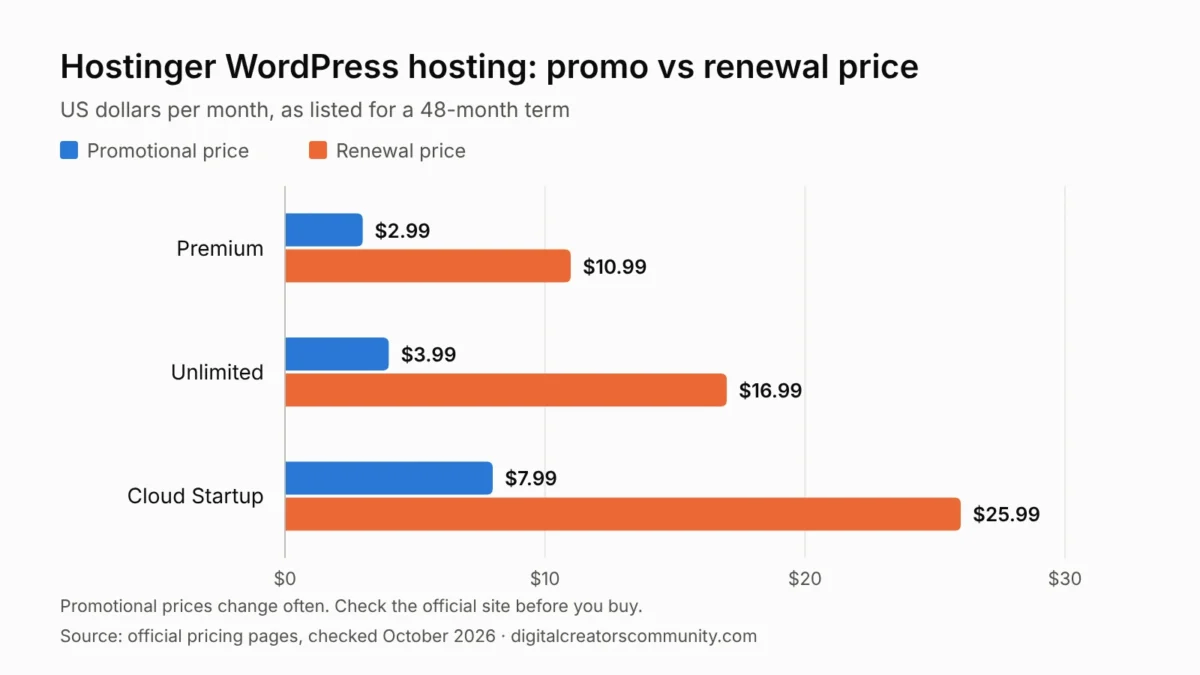
Hostinger currently lists three WordPress hosting plans for new customers: Premium, Unlimited and Cloud Startup. The headline prices are $2.99, $3.99 and $7.99 per month, and they apply to a 48-month term paid upfront. The same page lists renewal prices of $10.99, $16.99 and $25.99 per month. Budget for the renewal price, not the promotional one. The page also lists a free domain for the first year and a 30-day money-back guarantee.
2. Switch on HTTPS before you publish anything
In hPanel, the WordPress overview page shows whether the SSL certificate is active and has a Force HTTPS switch that redirects every request to the secure address. We turned it on at the start. It avoids duplicate versions of your pages and browser warnings for visitors.
3. Decide how WordPress updates itself
The same page has a setting for WordPress updates. Ours is set so that only security updates install automatically. Larger version changes wait until we choose to apply them, which gives time to check that the theme and plugins are ready. If you prefer this approach, remember that someone still has to apply the larger updates later.
4. There are two cache layers, so clear both
This one cost us time. Our pages are cached twice: once by the LiteSpeed Cache plugin inside WordPress and once by Hostinger’s CDN in front of the site. After a design change, clearing only the plugin cache was not enough. The CDN kept serving the older copy of the home page, and for a short while that copy pointed to a style file that no longer existed.
The fix was to open the CDN page in hPanel and use its Clear cache button. Since then, our routine after any visual change is to clear the plugin cache first and the CDN cache second, then check the site in a private browser window.

5. Keep daily backups on and know where they are
Our plan shows daily backups as enabled in hPanel. We have not needed to restore one yet, so we cannot describe that process from experience. What we can say is that it is worth finding the backup page before you need it. Plans differ here: on the public pricing page, Premium lists weekly backups, while Unlimited and Cloud Startup list daily backups.
6. Use a mailbox on your own domain
Our contact address uses the site’s domain and is hosted with Hostinger. For a small site, that keeps hosting and email under one login. If you publish a contact address, send yourself a test message before you rely on it.
7. Keep the plugin list short
We run a small set of plugins: Rank Math for SEO, LiteSpeed Cache for speed, EWWW Image Optimizer for images, CookieYes for the cookie banner, AddToAny for share buttons and Header Footer Code Manager for small code snippets. Fewer plugins mean fewer updates to watch and fewer things that can conflict.
How hPanel organizes WordPress on Hostinger
hPanel groups a site’s settings in a side menu. In our account the sections are the dashboard, WordPress, hosting plan, performance, analytics, security, domains, files, databases and an advanced area. The WordPress section holds the overview page described above. The performance section holds the CDN page, where the cache is cleared. Once you know those two places, most of the routine tasks in this guide are quick to find.
WordPress on Hostinger: plans for new customers
These are the plans listed on Hostinger’s WordPress hosting page when we checked. Our own account uses an older plan name, so we show the public list here for anyone starting now.
| Plan | Promo price | Renewal price | Websites | Storage | Backups |
|---|---|---|---|---|---|
| Premium | $2.99/month | $10.99/month | 3 | 20 GB SSD | Weekly |
| Unlimited | $3.99/month | $16.99/month | Unlimited | 50 GB NVMe | Daily |
| Cloud Startup | $7.99/month | $25.99/month | Unlimited | 100 GB NVMe | Daily and on demand |
Promotional prices apply to a 48-month term. Over those four years, the Premium plan comes to $143.52 in total at the promotional rate, according to the same page.
Other hPanel tools we have seen but not used
hPanel also lists a staging tool for testing changes on a copy of the site, a site copy tool, an object cache switch, a development mode for the CDN and an AI troubleshooter. We mention them because they exist in our account. We have not used them enough to describe how well they work.
Who WordPress on Hostinger may suit
- Good fit if: you want low-cost WordPress hosting with a simple dashboard and you are comfortable paying for a long term upfront.
- Keep in mind: the lowest prices need a 48-month commitment, and renewal costs are higher.
- Also keep in mind: this is one site’s experience. We have not run speed benchmarks or compared Hostinger with other hosts side by side.
A short checklist for WordPress on Hostinger
- Confirm SSL is active and Force HTTPS is on.
- Choose your WordPress update setting.
- Check that backups are enabled and how often they run.
- Install a cache plugin and learn where to clear the CDN cache.
- Create a mailbox on your domain and test it.
- Publish your privacy policy, terms and contact pages before your first post.
What we would do differently
Looking back, two things would have saved time. First, we would learn where the CDN cache is cleared on day one, before making any design change. Second, we would write down the update and backup settings at the start, so there is a record to check against later. Neither is specific to WordPress on Hostinger, but both are easy to skip when a site is new.
How we wrote this guide
The lessons come from our own Hostinger account. Plan names and prices come from Hostinger’s official website. Companies cannot pay to be included on this site. See our review methodology.
Frequently asked questions
Is WordPress on Hostinger good for beginners?
In our experience the dashboard is easy to follow, with the main WordPress settings on one page. Your own needs may differ, so use the 30-day money-back guarantee to try it.
How much does WordPress on Hostinger cost?
For new customers, the official page lists promotional prices from $2.99 per month on a 48-month term, with renewal from $10.99 per month. Prices change often, so check the official site.
Do I need a cache plugin for WordPress on Hostinger?
Our site uses the LiteSpeed Cache plugin together with Hostinger’s CDN. Whatever you use, learn how to clear every cache layer after you change your site.
Does WordPress on Hostinger include backups?
On the page we checked, Premium lists weekly backups, and Unlimited and Cloud Startup list daily backups. Our own account shows daily backups as enabled.
Can I host more than one website on one plan?
It depends on the plan. On the page we checked, Premium lists 3 websites, while Unlimited and Cloud Startup list unlimited websites.
The bottom line on WordPress on Hostinger
For this site, WordPress on Hostinger has been a low-cost setup with the main settings in one dashboard. The points to plan for are the long term behind the promotional price, the higher renewal rate and the two cache layers. If those fit your situation, the 30-day money-back guarantee gives you time to try it with a real site.
Related guides: productivity tools for small teams and sales funnel builders compared.
Editorial note: Product names and trademarks belong to their respective owners. DCCommunity is not affiliated with or endorsed by Hostinger. Prices were checked against the official website in October 2026 and are provided for general guidance only. Features and prices may change.